
FS-Portal.euFS-Portal.euMod Catalog

In catalog

16,436

Farming Simulator versions

Mods

Categories

Useful things

883 mods

Browse 883 FS25 mods in Useful things with direct links to each mod page.

0
GE10 Script - Placeable XML Editor (Prefab)

GE10 Script - Placeable XML Editor (Prefab)

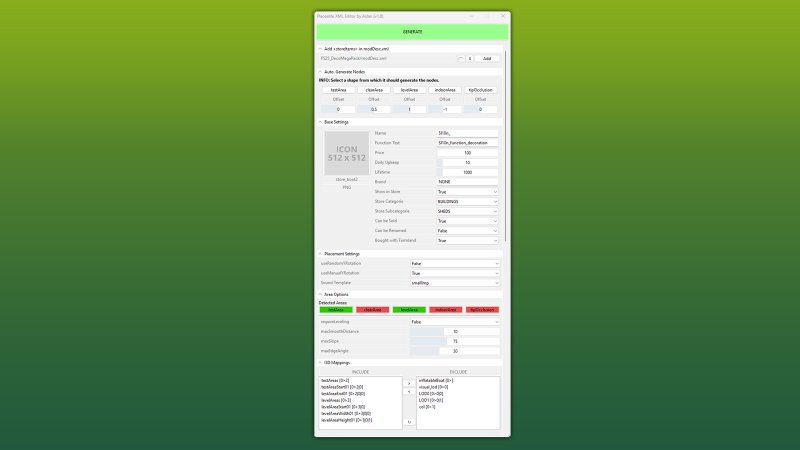
Gallery Description FS25 GE10 Script - Placeable XML Editor (Prefab) v1.0.0.1 This GIANTS Editor script allows you to easily create and edit a placeable XML file. The script automatically detects the corresponding placeable.xml, provided it is located in the same directory and has the same name as the .i3d file. If existing entries are found, all supported parameters are read and made available for editing within the tool. Installation: 1.) Locate the installation directory of the GIANTS Editor. By default: “C:\Program Files\GIANTS Software\GIANTS_Editor_10.X.X\” 2.) Copy the script “PlaceableXMLEditor.lua” and “iconBigDefault.png” from the prefab folder into the script directory of the GIANTS Editor. 3.) The script will then be available in the GIANTS Editor via the menu bar under “Scripts”. Usage: 1.) Start the script on an object that you want to create as a placeable. 2.) The script automatically detects whether the object is located inside a mod and, if so, enables the tab “Add in modDesc.xml”. There, the path to the modDesc.xml can be specified in order to automatically add the placeable XML to the modDesc. 3.) Areas can be generated automatically. Set the offset value (in meters), select the object from which the areas should be generated, and click the corresponding button to create the area. 4.) Adjust all parameters according to your requirements. 5.) In the “I3D Mappings” section, select the nodes that should be stored in the I3D mappings of the XML. If necessary, the scene graph can be reloaded using the “Refresh” button. 6.) Finally, click “GENERATE” or “UPDATE” at the top to create or update the placeable.xml. INFO: At the moment, it is not yet possible to create all placeable specializations such as sellingStation, buyingStation, husbandries, etc. directly within the tool. However, the script can be used as a base to generate an XML file, which can then be manually extended with additional specializations. The PlaceableIcon is currently only displayed if it is a .PNG file. .DDS files are not (yet) supported by the Giants Editor in scripts! The script only modifies parameters that are configurable within the tool. Any existing XML entries that are not supported by the script will remain unchanged and will not be removed or overwritten. Hotfix 20.02.2026: – added iconBigDefault.png – Path “PlaceableXMLEditor.PLACEABLE_ICON_EMPTY_PATH” adjusted – Custom area names will be possible in the next regular update. Currently, only these exact names are accepted: # testAreaStart01, testAreaEnd01 # clearAreaStart01, clearAreaWidth01, clearAreaHeight01 # levelAreaStart01, levelAreaWidth01, levelAreaHeight01 # indoorAreaStart01, indoorAreaWidth01, indoorAreaHeight01 # tipOcclusionUpdateAreaStart01, tipOcclusionUpdateAreaEnd01 Credits Aslan

Published: Feb 20, 2026
Downloads: 0Ratings: no votes yet.
0
GE10 Script - Placeable Importer (Prefab)

GE10 Script - Placeable Importer (Prefab)

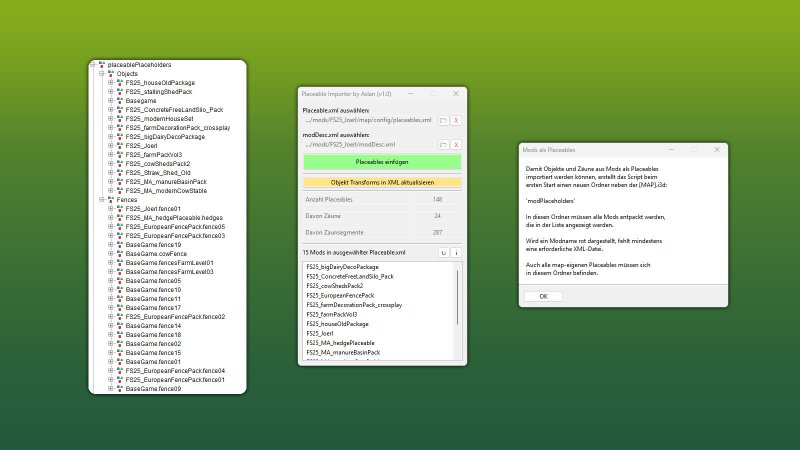
Gallery Description FS25 GE10 Script - Placeable Importer (Prefab) v1.1.0.0 This GIANTS Editor script allows you to import all placeables, including fences, into your map that are defined in a selected “placeable.xml”. Unlike the official PlaceableToolkit by GIANTS, this script works purely with a visual representation during the map building phase. This means you can first place objects and fences in-game and then import them into the GIANTS Editor using this script to maintain a complete visual overview of all placed elements while continuing map development. Additionally, the script generates an in-game script that automatically removes the imported visualization placeables from the I3D when the map is loaded in-game, allowing the real placeables to load normally. For this feature to work, a “modDesc.xml” must be selected in the GE script. Installation: 1.) Locate your GIANTS Editor installation directory. By default: “C:\Program Files\GIANTS Software\GIANTS_Editor_10.X.X\” 2.) Copy the script “PlaceableImporter.lua” from the prefab into the GIANTS Editor script folder. 3.) The script will then be available in the GIANTS Editor via the menu bar under “Scripts”. INFO: – To load placeables from mods, the script creates a folder named “modPlaceholders” on first launch. All required mods must be extracted into this folder. – Object placeables can be moved/rotated in the editor and updated back to the .XML via the update button. Make sure the placeables in the .XML contain a “uniqueId”. – Fences can also be permanently integrated into the map by moving the desired fence objects outside of the “placeablePlaceholders” node. When using mod fences, texture paths may need to be adjusted. —————————– Changelog 1.1: – Fixed multiple alternative path resolution issues – placeable.xml is now loaded automatically via modDesc.xml – Custom placeable.xml path is now supported – New options added. Please refer to the info button for details Credits Aslan

Published: Feb 20, 2026

Downloads: 0Ratings: no votes yet.
0
RealisticRT (Shader)

RealisticRT (Shader)

Gallery Description FS25 RealisticRT (Shader) v1.2.0.1 CompleteRT required (see download links) This shader uses NiceGuy’s CompleteRT (now free) and ZenteonTurboGI to produce screen-space ray tracing. In addition, other effects are used to adjust contrast, saturation and coloring. Please follow the instruction video! Download Links: 1. RealisticRT shaders and lighting: https://workupload.com/file/WeTw39kuTzF 2. Reshade: https://reshade.me/downloads/ReShade_Setup_6.6.0_Addon.exe (newer versions currently do not work properly) 3. CompleteRT: https://discord.com/invite/vKnkqu3dpK Have fun! V1.2.0.1 – added new tutorial V1.2.0.0 – Added custom lighting (requires “additional game settings” mod) – Added Zenteon_TurboGI.fx – Removed TiltShift.fx – minor changes to contrast V1.1.0.0 minor changes to: – Ambient occlusion -Global Illumination – Contrast – Saturation Credits EMERGENCY MODDING

Published: Feb 19, 2026

Downloads: 0Ratings: no votes yet.
0
Productions Manager

Productions Manager

Gallery Description FS25 Productions Manager Comprehensive production management system for Farming Simulator 25. Features: • Production Overview: View all productions with fill levels, capacities, and monthly income • Toggle Views: Switch between inputs, outputs, and recipes • Financial Tracking: See monthly revenue, costs, and net profit for each production • Logistics Page: Overview of all production’s and their recipies includes, Supply Duration, Cycles/MO, Output Mode, Location, Status • Auto-Management: Automatically activate/deactivate productions based on input availability and output capacity • Smart Notifications: Get alerts when productions stop/start or when inputs are low/outputs are high • CSV Export: Export all production data for external analysis • Multi-Language Support: Available in 3 languages Press Right Shift + P to open the Production Overview. Logo: MarkThor Credits NX Modding

Published: Feb 18, 2026

Downloads: 0Ratings: no votes yet.
0
Lizard FOR9T Pack (Prefab)

Lizard FOR9T Pack (Prefab)

Gallery Description FS25 Lizard FOR9T Pack (Prefab) Lizard FOR9T pack For installation see: “INSTALLATION_INSTRUCTIONS” Includes: – Lizard FOR9T No-Glare – Lizard FOR9T Illusion – Lizard FOR9T Gravity – different DRL options Credits 5oteruud

Published: Feb 18, 2026

Downloads: 0Ratings: no votes yet.
0
SnowChain (Prefab)

SnowChain (Prefab)

Gallery Description FS25 SnowChain (Prefab) A snow chain package with tire sizes 650 65R34 and 710 75R42 Credits RedGuideGamer

Published: Feb 18, 2026

Downloads: 0Ratings: no votes yet.
0
Camera Screen (Prefab)

Camera Screen (Prefab)

Gallery Description FS25 Camera Screen (Prefab) Universally applicable screen for retrofitting a camera system to tractors and self-propelled vehicles of all kinds. An XML file with sample entries and brief instructions is included. The template is for the simplest case, where only one camera of an attachment is displayed. Of course, with the appropriate knowledge, you can also customize the system by displaying multiple cameras and, for example, installing a manual switch option with Interactive Control. Credits PXLR

Published: Feb 18, 2026

Downloads: 0Ratings: no votes yet.
0
Hella LED (Prefab)

Hella LED (Prefab)

Gallery Description FS25 Hella LED (Prefab) Hello everyone, Here I’m providing you with my Hella LED prefab file. This is intended as an installation option and can replace original files. I’m not a big fan of pure white light fixtures; I prefer a balanced color scheme. Likewise, I’m not a fan of so-called emissive light fixtures, where only the glass glows and the light is merely suggested. In this version, the LEDs are implemented separately. This means that only the LEDs light up, while neither the frame nor the glass emits any light. Installation instructions XML Insert the following entry between the vehicle XML file and the corresponding field: code Make sure to adjust the linkNodevalue and the lightTypesentry according to your desired configuration. Installation instructions i3d (LS25) Create a TransformGroup , name it as desired, and ensure that it is located at the origin (0|0|0) . Now place the desired light into this TransformGroup and position the complete TransformGroup at the desired location on the vehicle, trailer or attachment. Next, turn off the light from the TransformGroup , but remember the node of the TransformGroup (top right in the GE ). This node is needed to replace the “XXX” entry in the [ document/section].sharedLight Now copy the sharedLightentry , adjust it accordingly with your node (XXX) and the desired Y value , and insert it into the XML between and . If you have done everything correctly, you will know this because the light in the game can be turned on . Example: code Replaced XXXby the corresponding node from the GE and Yby the desired light type . In most cases, it’s already there. You simply need to sharedLightadd the entry. linkNode=”X>X|X|X”This describes the LinkNode , which you can find in the top right corner of the GE . Enter this value in place of “XXX” . The “Y” symbolizes the light deployment . Assignment: (Change the “Y” as desired) 0 = Parking lights / Low beam headlights (1x button F) 1 = Rear work light (2× button F) 2 = Front work light (3× button F) 3 = High beam (Keyboard shortcut: Ctrl + F) For any questions, please feel free to contact me on Instagram at Dachau_Agrar or here in the forum. Credits Dachau_Agrar

Published: Feb 17, 2026

Downloads: 0Ratings: no votes yet.
0
Backgrounds

Backgrounds

Gallery Description FS25 Backgrounds I’m releasing my FS25 backgrounds. Maybe someone might be interested. UPLOAD THE PHOTOS TO THE SHARED DIRECTORY IN THE GAME FILES. Here are links to the latest photos: https://sharemods.com/j7pc0svj4uyx/splash.dds.html https://sharemods.com/aqxcnhfbibna/splash.dds.html Credits Kxper Uploaded by Kxper

Published: Feb 17, 2026

Downloads: 0Ratings: no votes yet.
0
Unlimited Tree Placement

Unlimited Tree Placement

Gallery Description FS25 Unlimited Tree Placement This script removes the limit for placeable trees in build mode and allows unlimited, free placement of trees. Credits dorschi151

Published: Feb 17, 2026

Downloads: 0Ratings: no votes yet.